 MathCS.org - Statistics
back | next
2.4 Installing the Analysis Pack
Excel contains a variety of "add-ons" that allow you to perform additional calculations beyond the basic features build into Excel from the start. Some of these add-ons might require you to insert the Microsoft Office CD ROM, others can be installed without that disk. In general, the more add-ons you install into Excel, the longer the program takes to start up. Therefore you only want to install those options that you are really going to use, or uninstall add-ons when you don't need them any longer.
For this class you must install the "Analysis ToolPak", which contains a variety of procedures for conducting statistical analysis. Installing an add-on is simple, but differs slightly depending on your version of Excel. In addition, if you are using a Seton Hall laptop, you will neeed to contact the Seton Hall help desk to properly install that addon software. So, send an email to servicedesk@shu.edu and ask them for "directions to install sthe Analysis Pak for Microfot Excel". Note that they might take a little bit longer to answer, so please send that email out soon! Yu will need this toolpak at different times for the remainder of the course.
Here is the procedure for installing the Analysis ToolPak if you are using your own copyo MS Excel:
For this class you must install the "Analysis ToolPak", which contains a variety of procedures for conducting statistical analysis. Installing an add-on is simple, but differs slightly depending on your version of Excel. Here is the procedure for the
Analysis ToolPak for Excel 2007
- Start Excel as usual
- Click on the "Office" button in the top left corner
- Click on "Excel Options" next to "Exit Excel near the bottom
of the menu

- Highlight the "Add-Ins" option on the list on the left. Most likely the Analysis ToolPak add-in will show as inactive, as in the picture above.
- Highlight the "Analysis ToolPak" in the list of inactive add-ins and click on the "Go ..." button at the bottom. You'll see another dialog box like this:

- Make sure to check the "Analysis ToolPak" and click "OK".
- Excel should ask you for confirmation. Agree and you're done (after the installation progress finishes, which will tke a minute or so).
You should not be prompted to insert a CD-ROM. If you do have to insert the Microsoft Office CD-ROM you should contact the Help Desk at x2222 for further assistance (unless, of course, you do have the CD-ROM ...)
The functions from the analysis toolpak will now be available in the "Data" ribbon on the right-most side, named "Data" (and not in the "Add Ins" ribbon as you might expect.

Check the ToolPak
The specific functions in that add-in are the same as for most versions of Office. If you select the "Data Analysis ..." option under "Data" you will see the following entries for performing statistical analysis on data in your spreadsheet:
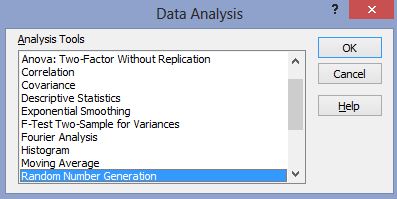
We will explore several of these options in the rest of this course, but you are welcome to click on "Help" now to learn more about the Analysis Tookpak.